Add images
Upload images, drag and drop them, or paste a screenshot with Ctrl+V.

Extract editable text from any image or screenshotA screenshot of an error message, a whiteboard photo, a scanned page: all trap text inside pixels where you cannot search, copy, or edit it. OCR reads the letter shapes and returns real, selectable text.
Extract editable text from any image or screenshot
Add JPG, PNG, WebP or BMP images, drag and drop them here, or paste a screenshot straight from your clipboard with Ctrl+V. A real OCR engine reads them on your device, nothing is uploaded.
First run downloads the language data once (about 10-20 MB), then it is cached. Clean, straight photos work best; rotate tilted photos before extracting.
Upload images, drag and drop them, or paste a screenshot with Ctrl+V.
Choose the language and click "Extract text".
Copy the text, edit it if needed, or download it as .txt.
The Image to Text tool runs a genuine OCR engine right in your browser. It reads photos, screenshots and documents and hands you editable text in seconds, with support for English, Urdu, Arabic and Hindi. Auto-enhance cleans up contrast before recognition, and because everything happens on your device, your private images never leave the browser.
Freeing text trapped in pixels.
Students digitize textbook pages and lecture slides instead of retyping them. The extracted text lands in an editable box, ready to copy.
Office workers pull figures out of scanned invoices and reports. Clean screenshots, typed documents, and printed pages photographed straight-on extract at near-perfect accuracy.
Developers extract error messages from screenshots to paste into search engines. Faster than retyping a stack trace by hand, and typo-free.
Multiple languages are supported, so a photo of a French menu or an Urdu signboard extracts just as readily as English text. No language barrier.
Accuracy starts with the image.
For best results, crop tightly around the text before running OCR. Cutting out irrelevant background noticeably improves recognition accuracy every single time.
Accuracy depends heavily on the source image. Sharp, high-contrast, properly rotated images extract near-perfectly, while blurry photos and busy backgrounds produce errors.
Blurry photos, fancy script fonts, text over busy backgrounds, and heavy perspective distortion will produce errors that need manual cleanup. Know the limits.
Sensitive documents like IDs, contracts, and medical papers are never uploaded anywhere.
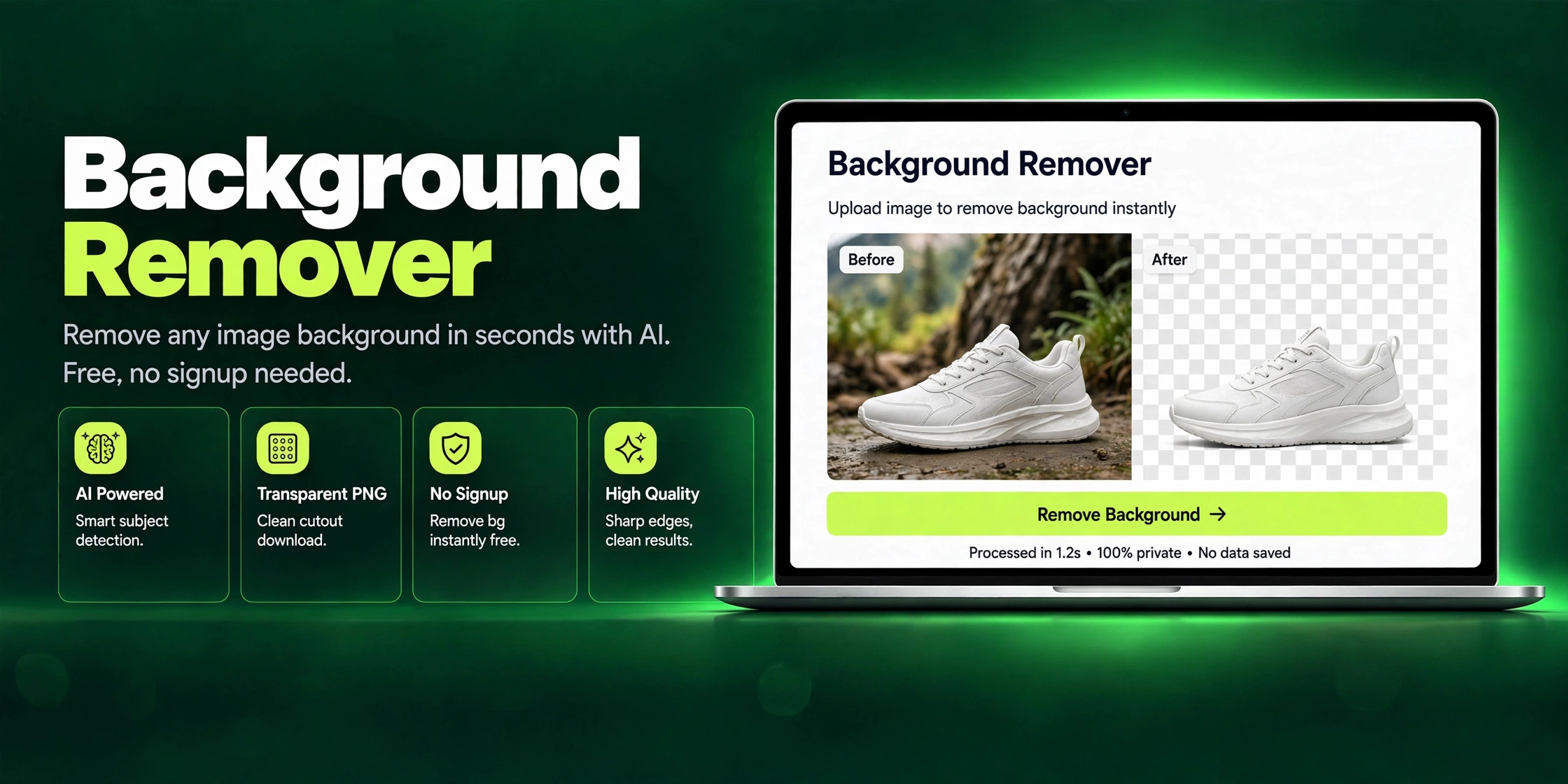
Remove the background from any photo in seconds and get a clean transparent PNG, free, with no signup required.
Read article →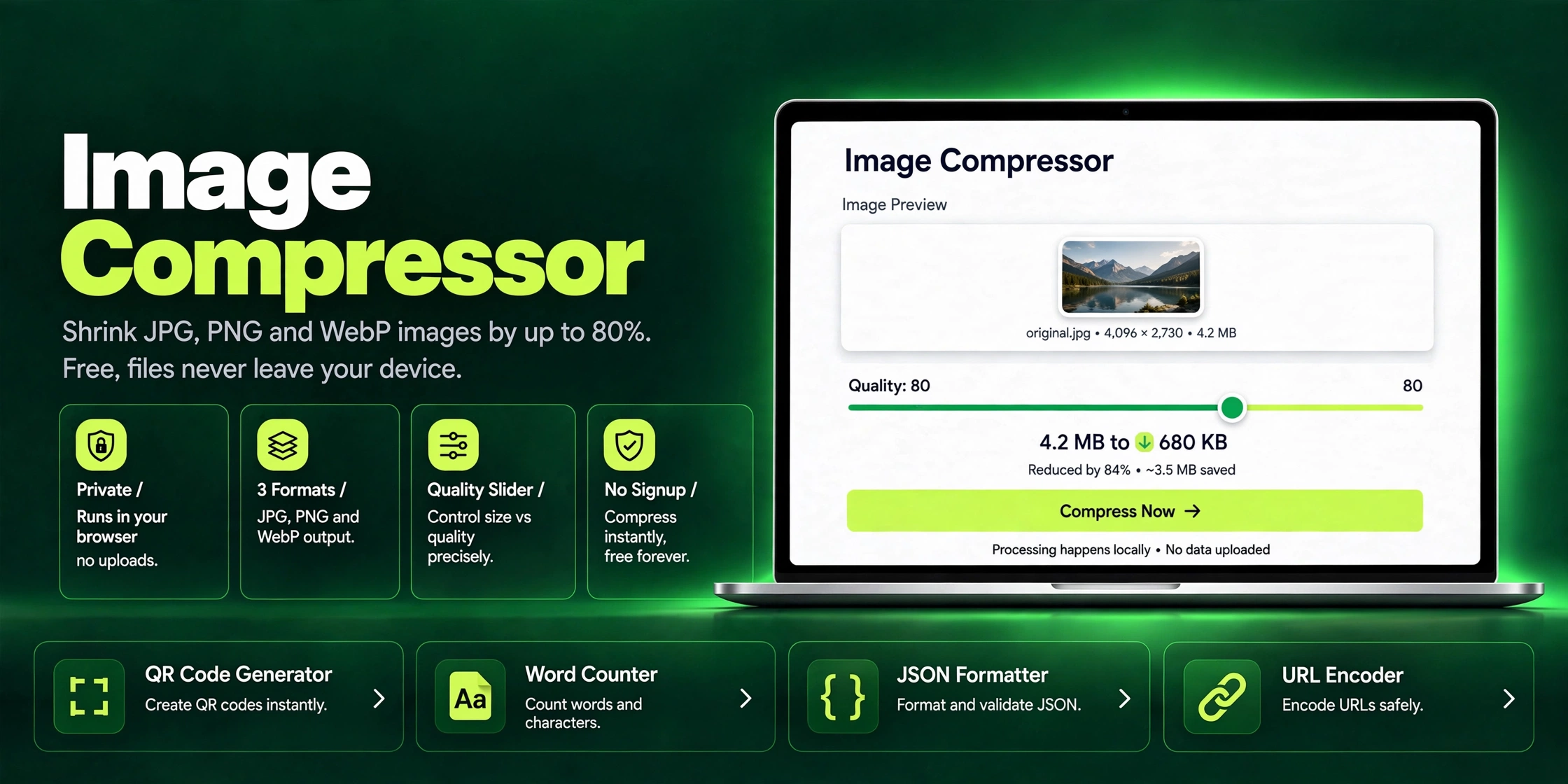
Cut JPG, PNG and WebP file sizes by up to 80% with no visible quality loss. Here is how image compression works and how to do it free in your browser.
Read article →