
Free in-browser compression for JPG, PNG and WebP, with a quality slider and live before-and-after file sizes.
IMAGE TOOLS · FREE ONLINE TOOL
Image Compressor
Shrink image file size without visible quality lossOversized images are the single biggest cause of slow websites. A blog post with five unoptimized photos can weigh 15 MB. Upload one image or a whole batch, move the quality slider, and watch the file shrink with live numbers.
↗ Get started instantly
// IMAGE COMPRESSOR · GET STARTED
Compress your image
Shrink image file size without visible quality loss
Advertisement
⤒Upload images
Choose one image or many at once.Drag images here or choose files
Choose FilesJPG, PNG, WebP, GIF or BMP. Processed privately in your browser.
Higher quality keeps more detail. Recommended: 70–90%.
Advertisement
Image Compressor: what to know first.
Shrink image file size without visible quality loss
No uploads, no queues, no watermarks and no sign-up - your images stay private.
How to use the Image Compressor
Upload an image
Upload an image (JPEG, PNG, WebP, GIF or BMP).
Adjust settings
Move the quality slider to balance file size and visual quality.
Choose output format
Choose the output format (JPEG, PNG or WebP). The quality slider does not apply to PNG. Choose JPEG or WebP for smaller files.
Preview and download
Preview the result, check the size savings, then download.
// IMAGE COMPRESSOR · ABOUT THIS TOOL
About the Image Compressor
Large images are the number one cause of slow websites, hurting page speed, SEO rankings and mobile data usage. Check your page images to find more speed wins. This compressor shrinks your images right in the browser with an adjustable quality slider, live before/after sizes, and JPEG, PNG and WebP conversion in the same step. If you need different dimensions too, resize first and then compress for the best balance of size and quality.
Because processing is local, there are no server file-size limits, no queues, no watermarks and complete privacy for your images. Once your images are compressed, check your page images with a free SEO audit to catch any remaining oversized files.
Where it helps most
The highest-leverage speed fix.
Faster websites
Page speed studies keep landing on the same finding: oversized images are the biggest cause of slow sites. Compression is the highest-leverage fix there is.
Client galleries
Photographers batch-compress client galleries before delivery to speed up sharing and storage.
Product photos
Store owners slim down product photos before uploading to Shopify or WooCommerce. Smaller files mean faster product pages and happier mobile shoppers.
Blog routines
Bloggers run every featured image through it as a matter of routine.
Compressing wisely
Settings that actually matter.
The 80 percent default
The slider defaults to 80, honest guidance: JPEG photos at 75 to 85 percent typically shrink 60 to 80 percent with no visible difference.
Switch formats too
Saving a photo as JPEG or WebP instead of PNG often cuts more than any slider setting, since the quality slider does not apply to PNG. If you end up with a PNG still too large for fast pages, converting it to JPG usually fixes that.
Dimensions untouched
Pixel dimensions stay untouched: a 1920 by 1080 photo remains 1920 by 1080 after compression. Only the file size changes, never the shape.
Image Compressor: private by design
No server-side file limit, no queue, no watermark. All on your own device.
Image Compressor FAQs
For JPEG photos, a quality setting of 75 to 85 percent usually cuts file size by 60 to 80 percent with no visible difference. Start at 80, lower the slider until you notice any change, then step back up slightly.
tools-guide
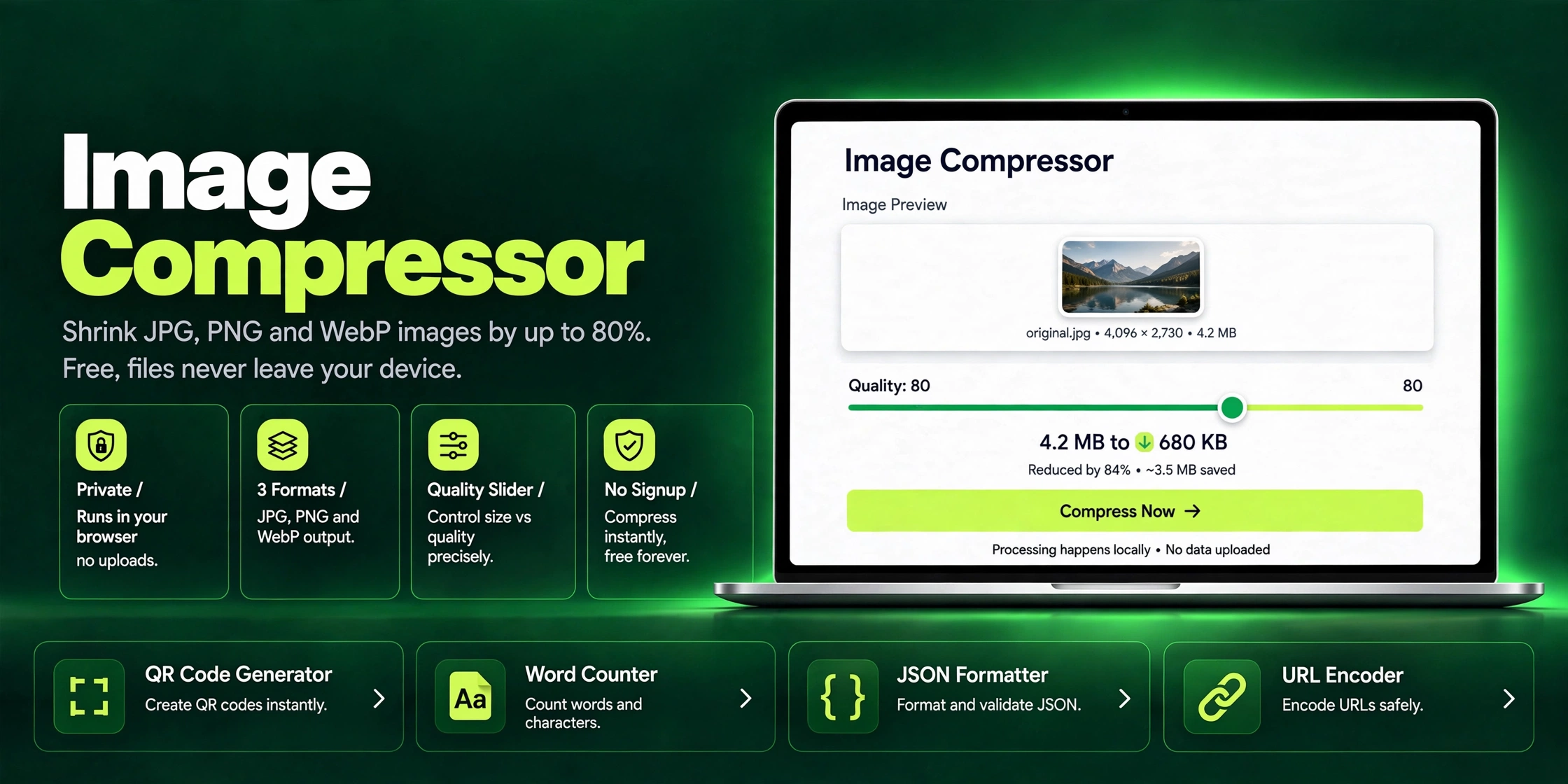
How to Compress Images Online: Reduce File Size Without Losing Quality
Cut JPG, PNG and WebP file sizes by up to 80% with no visible quality loss. Here is how image compression works and how to do it free in your browser.
Read article →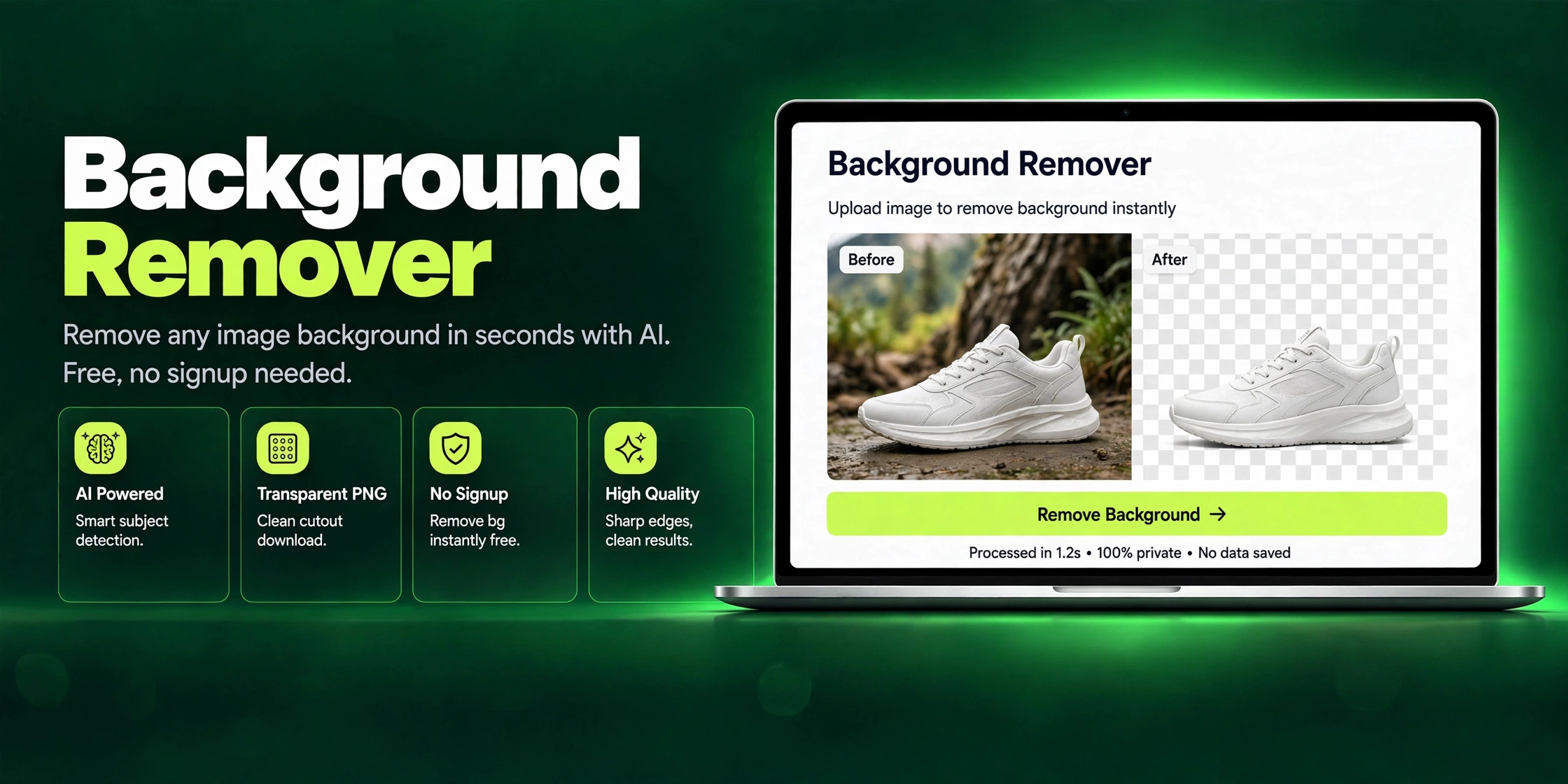
tools-guide
Remove Background from Any Image Online Free: The Complete Guide
Remove the background from any photo in seconds and get a clean transparent PNG, free, with no signup required.
Read article →