Compress Image to 50KB: Free Online Guide Without Losing Quality
Learn how to compress image to 50KB online free without losing quality. Step-by-step guide for visa forms, job portals, and admission uploads.
Introduction
If you have ever filled out an online form for a visa, a government job, a university admission, or a passport application, you have met the 50KB wall. You upload your photo, the site rejects it: "File size must not exceed 50KB." Your phone photo is 4MB. Now what?
This is one of the most common image problems on the internet, especially in South Asia, where portals for visas, national ID cards, job commissions, and exam registrations almost always demand photos under 50KB. The frustrating part is that most free compressors only offer vague options like "low, medium, high" quality. You compress, check the size, and it comes out at 73KB or 31KB. Too big, or so small the photo looks like a smudge. Then you try again. And again.
Target-size compression solves this properly. Instead of guessing with quality sliders, you tell the tool the exact size you need (50KB), and it works out the right balance of dimensions, format, and quality to land there. This guide walks you through the whole thing: why 50KB is the magic number, how compression actually works, and the exact steps to shrink any photo to 50KB without making it look terrible.
Why this matters
A photo that is 50KB instead of 4MB uploads instantly, passes every portal's validation, and still looks perfectly fine at the small sizes these forms display.
For personal projects
Students and job seekers deal with this constantly. Admission portals, scholarship forms, freelance profiles, and exam registrations all have strict photo limits. Knowing how to hit exactly 50KB in one pass saves you from the compress-check-reject loop the night before a deadline. It also helps with email: a 50KB photo attaches instantly instead of clogging your outbox.
For business and team use
HR teams, admissions offices, and agencies that collect documents from dozens of people waste hours asking applicants to "please resize your photo." A shared one-link tool that compresses to an exact target size removes that back-and-forth entirely. Web teams also use 50KB-class images for thumbnails, avatars, and listing photos where every kilobyte affects page load speed.
Helpful details
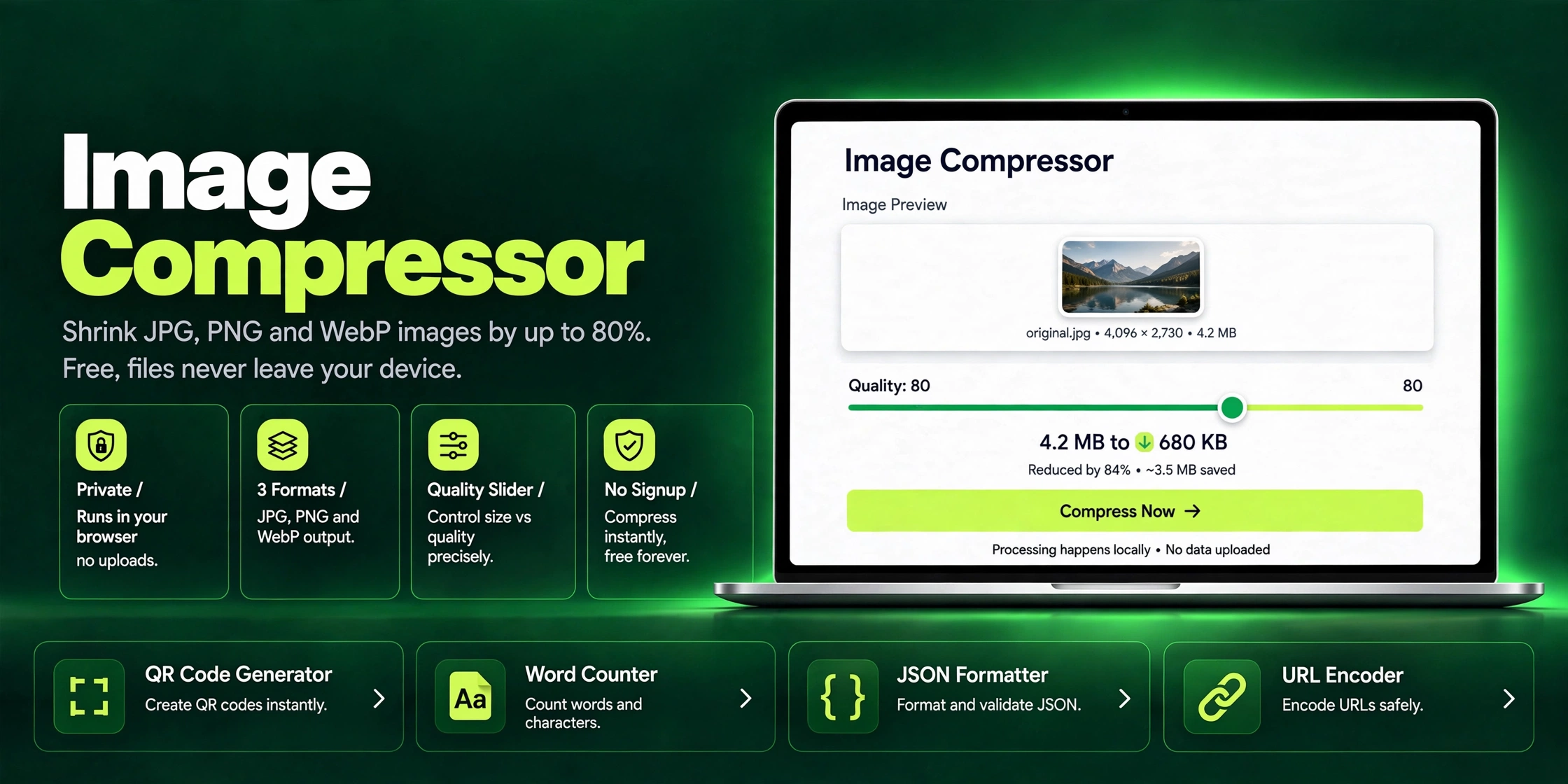
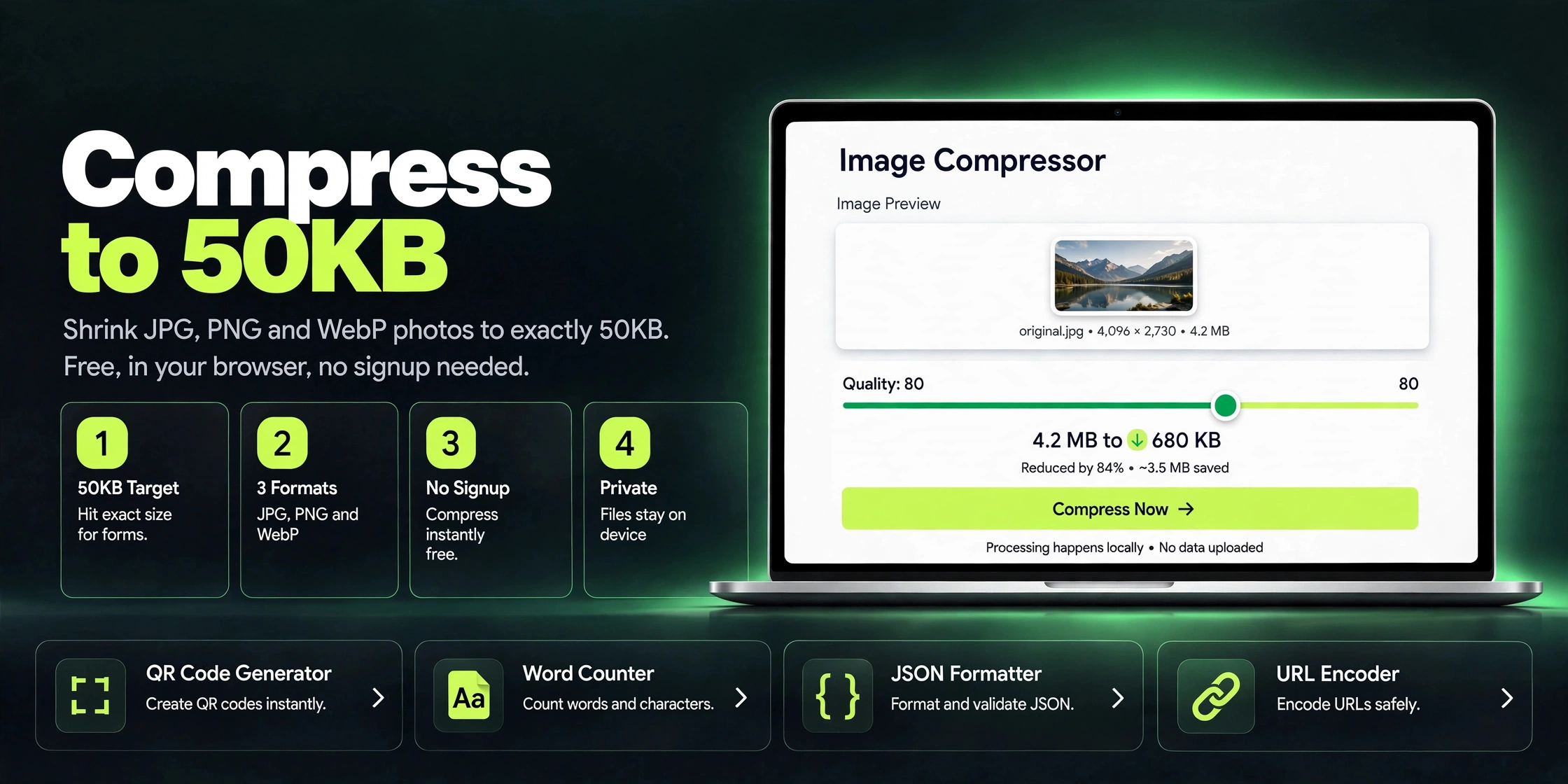
Target size compression: Set 50KB as the goal and the tool adjusts quality and dimensions automatically until the output lands at or under the target, instead of you guessing with a slider.
Smart format choice: JPG is usually the best pick for photos at 50KB because it handles gradients and skin tones efficiently. PNG keeps sharp edges for screenshots and graphics but produces larger files, so the tool can suggest which format fits your image.
Quality balance: Good compression finds the point where the file shrinks dramatically but the visible difference is negligible. At the small display sizes portals use (often under 300 pixels wide), a well-compressed 50KB photo looks identical to the original.
Private by design: The compression happens in your browser. Your photo never uploads to a server, which matters when the image is your passport photo or ID document.
No signup needed: Open the page, compress, download. There is no account, no watermark, and no daily limit standing between you and your deadline.
Batch friendly: If you need to prepare photos for several family members' visa applications, you can run them through one after another without reinstalling anything.
Picture a student in Lahore applying for a government internship. The portal demands a photograph under 50KB and a signature under 20KB, and the deadline is midnight. Her phone photo is 5.2MB. She opens a target-size compressor, uploads the photo, types 50KB, and downloads the result in seconds. It passes on the first try. Then she does the same for her signature at 20KB. Total time: under two minutes. Without target-size compression, she would have spent half an hour guessing quality percentages, and every failed upload would have added to the panic.
Step-by-step guide
Open the toolOpen the Image Compressor page and find the upload area.
Upload your photoDrag your JPG, PNG, or WebP photo into the upload zone, or click to choose it from your device.
Set the target size to 50KBEnter 50 as your target size. This is the key step: instead of picking "medium quality" and hoping, you are telling the tool exactly where to land.
Pick JPG for photosIf your image is a photograph (a face, a scene), JPG will give you the smallest file at acceptable quality. Keep PNG only for screenshots or graphics with text.
CompressStart the compression. The tool reduces dimensions and tunes quality until the file hits your 50KB target.
Preview before downloadingLook at the preview at full size. Check faces and text edges. If it looks clean, download it.
Verify the file sizeRight-click the downloaded file and check properties. It should read 50KB or slightly under. If a portal is extremely strict, aim for 48KB to leave a safety margin.