Canva Craft: How to Generate AI Images With Readable Text in Canva (New 2026 Model)
Introduction
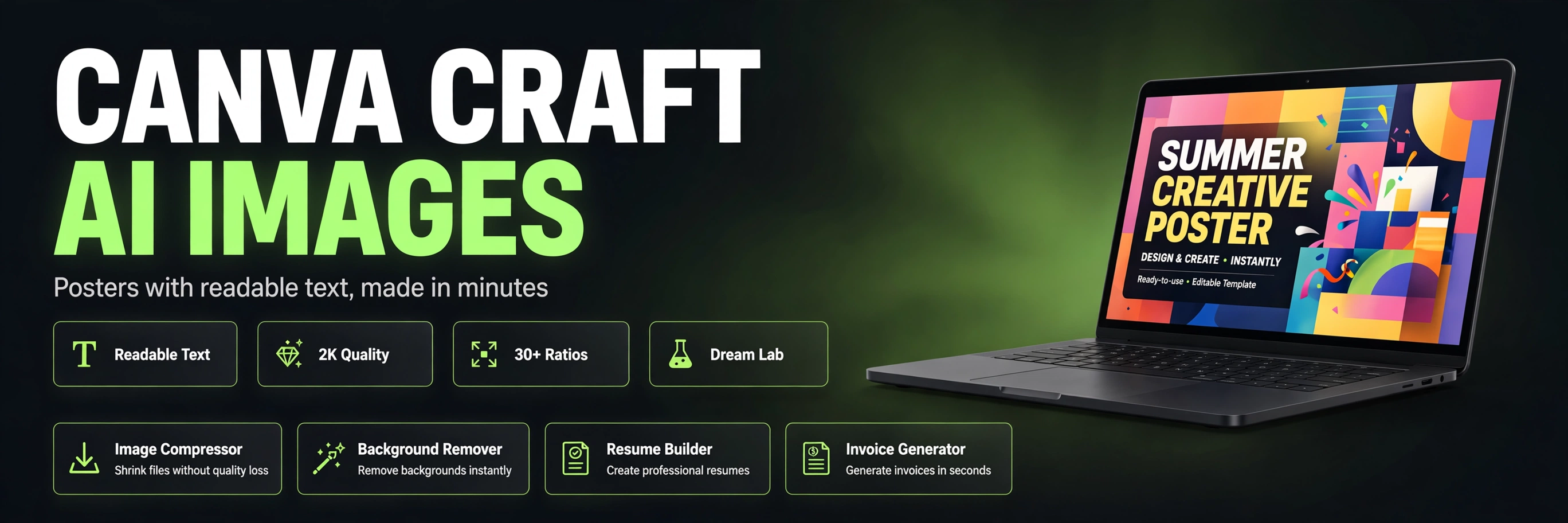
If you make blog covers, social posts, posters or YouTube thumbnails, you already know the most annoying problem with AI image tools: the picture looks great and the text on it is gibberish. Misspelled headlines, extra words that nobody asked for, letters melting into each other. On 22 October 2026, Canva launched Craft, its first image generation model built entirely in-house, and its whole pitch is fixing exactly that problem. The direct answer, before the detail: Canva Craft is now available to all Canva users inside Dream Lab, and to developers through Canva's public API. It works in two stages. First it plans the layout of your design, where each object goes, how big it is, and where the text sits. Then it renders the final image at up to 2K resolution in more than 30 aspect ratios. Because it was trained on millions of human made design templates instead of photographs, it understands posters, social posts, infographics and menus the way a designer does. This article explains what Craft is, how to use it step by step, how it compares with the tools you already know, and the prompt habits that get clean, readable text on the first try.
Key Takeaways
Canva Craft announced 22 October 2026
Canva announced Craft on 22 October 2026. It is the company's first image generation model built and trained in-house by Canva Research.
Available in Dream Lab and through the API
Craft is available now in Dream Lab for all Canva users, including free accounts subject to AI usage limits, and through the public API under the model name craft_v1_2k.
Two-stage planning process
It uses a two stage process: a planner maps out the composition first, then a renderer draws the final image. That planning step is why text stays readable.
Up to 2K resolution, 30+ aspect ratios, 55 languages
Output goes up to 2K resolution across more than 30 aspect ratios, with on image text supported in 55 languages.
Trained on human-made templates
Craft was trained on millions of human made templates from Canva's library, posters, social posts, presentations, infographics and menus, not on photographs.
Fourth overall on DesignArena
On DesignArena, the public leaderboard where people vote between AI images, Craft debuted fourth overall, and first in People and Portraits and in Landscapes and Nature.
Craftfast and Craft-ultrafast in development
Faster and cheaper versions called Craftfast and Craft-ultrafast are in development, but no release date or price has been announced for them yet.
Editable with Magic Layers
Generated images can be turned into editable layered designs with Canva Magic Layers, so you can fix text and move objects without regenerating the whole image.
What Canva Craft Is and Why It Is Different
Most AI image generators go straight from your prompt to pixels in one pass. You describe a poster, the model guesses the whole thing at once, and if the headline comes out wrong, you roll the dice again. Craft splits the job in two. Stage one reads your prompt and builds a composition plan: which elements appear, where each one sits, how large it is relative to the others, what the visual hierarchy is, and exactly where any text goes. Stage two renders the final image from that plan. That difference matters most for design work. A photograph does not need a headline in a specific corner at a specific size. A poster does. An Instagram post does. A menu does. Canva trained Craft on its own library of human made templates, so the model has seen millions of real layouts where text, images and spacing already work together. Researchers from Leonardo.ai, the media generation company Canva acquired in 2024, contributed to building the model, and Canva Research, a lab of more than 160 researchers and engineers, built it from scratch rather than fine tuning somebody else's model. The numbers Canva published at launch are worth knowing, with one honest caveat: they are company reported results, not independent tests. On DesignArena, Craft debuted fourth overall, behind three OpenAI GPT Image models but ahead of Google's Nano Banana 2.1. In individual categories it ranked first for People and Portraits out of 87 models and first for Landscapes and Nature out of 85 models, second for Abstract and Patterns and fourth for Products. Canva also says its own designers judged more than 25,000 pairs of images during development, and that when automated scores disagreed with a designer, the designer won. That is a useful signal about what the model was optimized for: designs a human would actually ship, not just images that score well on a benchmark. There is also a business reason behind the launch that is worth understanding. Every image Canva users generated with a partner model cost Canva an API fee. Building its own model gives Canva control over quality, speed and cost, which is exactly why the faster Craftfast and Craft-ultrafast versions are coming next. For users, the practical upside is a model tuned for the exact job Canva is used for, instead of a general purpose image model squeezed into a design tool.
How to Use Canva Craft in Dream Lab, Step by Step
You need nothing extra to try Craft. No new app, no separate signup, no plugin. If you have a Canva account, free or paid, you already have access, subject to the AI usage limits on your plan. Here is the full workflow. Step 1: Sign in to Canva and open Dream Lab. Dream Lab is Canva's AI image generation feature. On most accounts it sits in the left sidebar; on some accounts it lives under the More menu. You can also go straight to the Dream Lab page from Canva's homepage navigation. Step 2: Check the model selector. Under the prompt box, the model picker should show Canva Craft, listed as Canva Craft-1 2K on some accounts. If it shows a different model, switch it to Craft before you generate. This is the step people skip, and then they wonder why the results do not match what they read about. Step 3: Write a complete prompt. Name every element you want in the image, including the exact text that must appear. Put that text in quotation marks and spell it exactly as it should read. Say what should be biggest or most prominent. For example: a clean poster for a bakery sale, headline "Fresh Bread Every Morning" as the largest text, a loaf of bread on a wooden table, warm morning light, minimal style. Vague prompts give vague posters. Step 4: Choose the aspect ratio and style. Craft supports more than 30 aspect ratios, so pick the shape that fits where the image will live: square for feed posts, vertical for stories and posters, wide 16:9 for blog banners and video thumbnails. Picking the ratio before generating saves you a crop later. Step 5: Generate and pick from up to four results. Canva returns several options for one prompt. Open each one at full size and check the text letter by letter before you use it. Zoom in on numbers, symbols and any non English text, because small text errors are easy to miss at thumbnail size. Step 6: Refine instead of restarting. If one object needs to move or one word is wrong, use the edit prompt to request a single change at a time, or use Magic Layers to split the image into editable elements. Opening the result in the Canva editor lets you change fonts, colors and text directly, which is faster than generating ten versions hoping for a perfect one. One practical warning from early testers: the edit box is an instruction field, not a chat. If you type a question there, that question can end up painted onto the image as text. And if you do not tell Craft to use only the text you specified, it sometimes adds extra labels, badges or taglines nobody asked for. Add a line like "use only the text I specified, no extra labels or taglines" to prompts where clean text matters.
What Craft Means for Bloggers, Small Businesses and Creators
This is where Craft stops being tech news and starts being useful. If you run a blog, a small shop, or a social media page, you probably make images every week: post covers, sale announcements, event posters, product graphics, infographics. Hiring a designer for each one is expensive. Wrestling with a general image generator for each one eats time, because every poster needs three or four retries to get the headline right. Craft is built for that exact weekly grind. A small business owner can generate a sale poster with a readable discount headline, then open it in the editor and change the price next week without starting over. A blogger can generate a cover image in the exact ratio a post needs, with the title text placed where it belongs, and then compress it for fast page loading. A social media creator can test four versions of a post graphic in minutes and keep the one that reads best on a phone screen. That last point deserves emphasis, because it connects directly to website performance. AI images at 2K resolution are large files, and large images slow pages down, which hurts both readers and search rankings. Generate at the quality you need, then compress before you publish. ZaxisMedia's free Image Compressor is one quick way to trim a Craft image for the web without visible quality loss, and the Background Remover is handy when a generated product shot needs a clean transparent background for a shop page or a thumbnail. Craft also changes the cost calculation for Canva itself, which is good news for users in the long run. Partner models charge per image, and those costs eventually land on users through credit limits. An in-house model lets Canva offer more generations for the same plan, and the upcoming Craftfast and Craft-ultrafast versions are explicitly aimed at lower cost and faster output. For now, the honest limits are these: free accounts face AI usage limits, generation through the API takes roughly a minute per image according to Canva's developer forum notes, and reference image support plus deeper editing tools are still on the roadmap, not in your hands yet.
Comparison Table
| Aspect | Canva Craft | ChatGPT image generation (GPT Image) | Google Nano Banana | Generic photo trained image models |
|---|---|---|---|---|
| Built for | Design layouts, posters, social posts, infographics | General image generation inside a chatbot | General image generation | Photorealistic pictures and art |
| How it works | Two stages: plan the layout, then render | Single pass from prompt to image | Single pass | Single pass |
| Training data | Millions of human made Canva templates | Mixed web scale image data | Mixed web scale image data | Mostly photographs |
| Readable text on posters | Core strength, designed for it | Good, but text errors still common | Good, improving fast | Weakest for text heavy designs |
| Max resolution at launch | Up to 2K | Varies by plan and tool | Varies | Varies by model |
| Aspect ratios | More than 30 | Limited set per tool | Limited set | Varies by model |
| Editable layers after generation | Yes, with Magic Layers in Canva editor | No native layered design output | No native layered design output | No |
| Where you use it | Canva Dream Lab and public API | ChatGPT app and API | Gemini app and API | Various apps and APIs |
| DesignArena debut rank | Fourth overall, first in two categories | Top three spots held by GPT Image models | Behind Craft at debut | Mixed |
| Free access | Free Canva accounts, subject to AI limits | Free tier with limits | Free tier with limits | Varies |
| The table makes the real point clearly. Craft does not win by being the best at everything. It wins at the specific job most bloggers and small businesses actually need: a design with text that reads correctly, in the right shape, ready to edit. If you want a photorealistic landscape for its own sake, any top model will do. If you want a poster that says what it is supposed to say, Craft is now the most direct route inside a tool you probably already use. |
Tips & Tricks
Put the exact text in quotes, every time
Put the exact text in quotes, every time. Craft handles text better than older models, but it still needs to know precisely which words are content and which words are instructions. "Headline: Summer Sale" is an instruction. The headline text itself, in quotation marks, is content. Keep the two separate.
Say what is biggest
Say what is biggest. Visual hierarchy is the difference between a poster and a mess. Tell Craft which element is the hero: the headline, the product, or the person. One sentence about hierarchy ("the headline is the largest element, the product photo is secondary") prevents the model from making everything equally loud.
Add a no extra text guardrail
Add a no extra text guardrail to text heavy prompts. A short line such as "use only the text I specified, no extra labels, badges or taglines" stops the most common Craft annoyance reported by early testers: bonus words appearing where they do not belong.
Generate in the final ratio
Generate in the final ratio, not a ratio you plan to crop later. Craft plans the layout for the shape you choose. A square poster cropped to vertical afterwards will cut the headline or unbalance the composition. Pick the ratio for the platform first, then prompt.
Check text at full size before publishing
Check text at full size before publishing. Open each of the four results large and read every word, including small print, numbers and prices. A wrong price on a sale poster is worse than no poster at all.
Edit, do not regenerate endlessly
Edit, do not regenerate endlessly. If three out of four elements are right, fix the fourth with an edit prompt or Magic Layers. Regenerating from scratch throws away the three good elements and gambles on all four again.
Compress before you publish
Compress before you publish. A 2K image straight out of Craft is heavier than a web page needs. Run blog covers and post graphics through an image compressor so pages stay fast, and keep the original 2K file aside for print or reuse.
Keep one prompt formula and reuse it
Keep one prompt formula and reuse it. Once a prompt style works for your brand, save it: subject, setting, headline in quotes, hierarchy, style, ratio, and the no extra text guardrail. Consistent prompts give consistent looking posts, which is what makes a small page look professional over time.
Frequently Asked Questions
Conclusion
Canva Craft is not the most powerful image model in the world, and Canva does not claim it is. It is the first model built specifically for the job millions of Canva users actually do every week: make a design that says something, clearly, in the right shape, without spending an afternoon fighting garbled text. The two stage planning process, the template based training, and the direct path into Canva's editor make it the most practical AI image launch of October 2026 for bloggers, small businesses and creators.
If you already use Canva, the advice is simple. Open Dream Lab this week, confirm Craft is selected as the model, and try one real job with it: your next post cover, sale poster or thumbnail. Write the headline in quotes, state what is biggest, add the no extra text guardrail, generate in the final ratio, and check the text at full size before you publish. Compress the result for the web, and keep the layered version in Canva so next week's version takes minutes instead of hours. The model will get faster and cheaper with Craftfast and Craft-ultrafast, but the workflow habit you build now is what will keep paying off.