Free Invoice Generator: Create Professional Invoices Online in Minutes
Create professional invoices online for free: no signup, no watermark, just a clean PDF in minutes.
Why invoicing is the part freelancers love to hate
You finished the work and the client is happy. Now comes the part nobody enjoys: the invoice. For freelancers and small business owners, invoicing usually means opening a blank Word document, trying to remember what a proper invoice even includes, fighting with alignment for twenty minutes, and wondering if the result looks professional enough to send. An hour later you have a document that looks okay but took far longer than the billing itself should ever take.
This matters more than most people think. Payment studies consistently show that around half of all freelance invoices are paid late, and unclear or sloppy invoices are one of the top reasons. A missing due date, a vague line item, or no payment instructions gives the client a reason, or at least an excuse, to push your bill to the bottom of the pile. When you are a team of one, every delayed payment hits your cash flow directly, and cash flow is what keeps a freelancer in business.
The good news is that invoicing does not need to be a chore. A free invoice generator turns the whole job into five minutes of typing: fill in your details, add the items, download a clean PDF, and send it. No design skills, no templates to wrestle with, no software to install. This guide walks you through everything that matters, from what goes on a professional invoice to the mistakes that delay payment and the small habits that get you paid faster.
What a free invoice generator actually does (and what it does not)
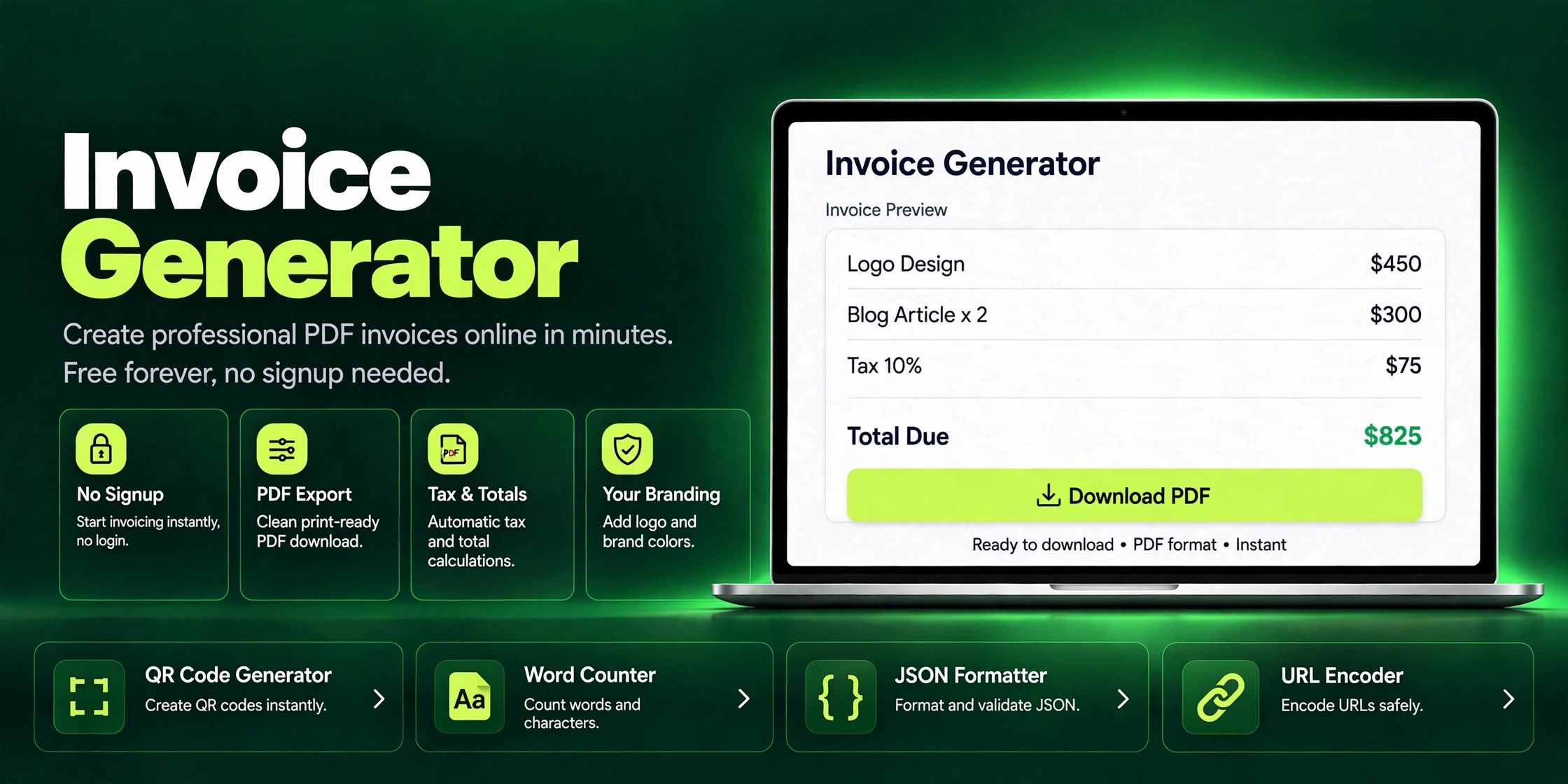
An online invoice generator is a simple web tool that builds a professional invoice from the details you type in. You enter your business name and contact info, your client's details, the work you did as line items with quantities and rates, and any tax or discount. The tool calculates the totals automatically, lays everything out in a clean print-ready format, and lets you download the result as a PDF invoice. The whole thing runs in your browser, so there is nothing to install and no account to create.
What it does not do is just as important. A proper free invoice maker should not ask you to sign up before downloading, should not stamp a watermark across your invoice, and should not cut you off after three invoices a month unless you pay. Those are the tricks of tools that call themselves free but are really just trials. The Invoice Generator on ZaxisMedia is free with no signup: your details stay in your own browser, with drafts and saved client info stored locally instead of uploaded to a server, and the PDF you download is clean and yours to keep.
What the tool cannot do is think for you. It will not tell you the correct tax rate for your country, it will not chase a late-paying client, and it will not replace an accountant at tax time. Think of it as a very fast, very neat assistant that handles the formatting and the math while you stay responsible for the numbers being right. Used that way, a free invoice generator saves most freelancers 30 to 60 minutes per invoice compared to building one from scratch in Word or Excel.
How to create an invoice online in 5 steps
Here is the practical walkthrough. Open the Invoice Generator and work from top to bottom. The preview updates as you type, so you always see exactly what the client will see.
Step 1: add your business details. Type your name or company name, address, email, and phone number. Upload your logo if you have one; it appears at the top of the invoice and instantly makes the document look like it came from an established business. Pick a color theme that matches your branding. Step 2: add your client's details. Name, company, address, and email. If you bill the same clients repeatedly, the tool saves them in your browser so next time you pick from a list instead of retyping everything.
Step 3: list what you are billing for. Each line item gets a description, a quantity, and a rate. Be specific here, because specific line items get paid faster than vague ones. Write "Logo design: 3 concepts, 2 revision rounds" instead of "Design work," and "Blog article, 1,200 words, includes 1 revision" instead of "Writing." The tool multiplies quantity by rate and keeps a running subtotal for you.
Step 4: set the numbers that matter. Add tax as a percentage if it applies to you, add any discount you agreed with the client, and choose your currency. Then set the invoice number using a simple sequential pattern like INV-2026-001, add the issue date and the due date, and write your payment terms in plain language, for example "Payment due within 15 days." Step 5: download and send. Hit the Download PDF button for a print-ready A4 file, use Print if you need a paper copy, or use Share to prepare the invoice for sending by email. Your draft stays saved in the browser, so if the client asks for a correction you can reopen it, edit one line, and re-download in seconds.
What every professional invoice must include
A professional invoice is not just a bill. It is a record that protects both sides if there is ever a disagreement. Whether you use an invoice maker or build one manually, these are the fields that should never be missing. The word "Invoice" itself should appear clearly at the top so nobody confuses it with a quote or a receipt.
The full checklist: a unique invoice number (keep them sequential with no gaps, so your records stay clean); the issue date and a clear due date; your full business details including contact information; your client's full details; an itemized list of goods or services with quantities and rates; the subtotal, any tax, any discount, and the final total; the currency; and your payment terms plus accepted payment methods with exact details. If you are tax-registered, include your tax ID or registration number, since many jurisdictions require it on a valid tax invoice.
Two fields people skip that cause the most trouble: the due date and the payment instructions. An invoice that says "please pay soon" has no deadline, and a client with no deadline pays whenever it suits them. Always write an exact due date, for example "Due: October 28, 2026," and spell out exactly how to pay. Use the notes section at the bottom for extras like "Thank you for your business" or a reminder of your late fee policy.
Invoice vs quotation vs proforma invoice: what is the difference?
These three documents look similar but do very different jobs, and mixing them up causes real confusion. A quotation, also called a quote, comes before the work: it tells the client what you will do and what it will cost so they can agree to it. An invoice comes after the work: it is a formal demand for payment for work already delivered. A proforma invoice sits in between: it looks like an invoice and shows the amounts, but it is not a payment demand. It is commonly used to confirm the scope and price in writing before work begins, or to support advance payments and customs paperwork in international trade.
The practical rule is simple: quote first, work second, invoice third. Send a quotation when the client asks "how much will this cost?" Use a proforma invoice when you need written confirmation of the agreed price before starting, or when a client needs a document to release an advance payment. Send the invoice only when the work is done or the agreed milestone is hit. Give each document its own numbering sequence so a QUO-014 never gets confused with an INV-014 in your records.
If you need all three, you do not need three different apps. ZaxisMedia has a matching free tool for each stage: the Quotation Generator for quotes, the Proforma Invoice Generator for proformas, and the Invoice Generator for the final bill. Using the same family of tools keeps your documents visually consistent, which makes a one-person business look considerably more established.
Tax on invoices: GST and VAT basics for freelancers
Tax is the part of invoicing that makes freelancers nervous, and the honest answer is that it depends on where you live and whether you are registered. GST (Goods and Services Tax, used in countries like India, Canada, and Australia) and VAT (Value Added Tax, used across the UK, the EU, and much of the Gulf) are both consumption taxes added on top of your price. Whether you must charge them depends on your registration status and whether your revenue crosses the local threshold. If you are not registered, you generally do not add tax. If you are registered, you must show the tax amount and your registration number on the invoice.
On the invoice itself, tax appears as its own line: subtotal first, then the tax amount (your rate applied to the subtotal), then the grand total. Most invoice tools, including the GST VAT Invoice Generator, let you set the tax rate as a percentage and calculate the split automatically. Two common mistakes to avoid: baking tax into your line-item rates and then adding tax again on top (pick one method and stay consistent), and using the wrong rate for the client's location on cross-border work.
One disclaimer that matters: this is general information, not tax advice. Tax rules change, and they differ by country, by state or province, and by the type of service you sell. If you invoice regularly, a single one-hour session with a local accountant usually pays for itself many times over in avoided penalties. The tool handles the math and the layout; making sure the rate is correct is your job.
Common invoicing mistakes that delay payment
Most late payments are not about clients refusing to pay. They are about invoices that give the client's accounts department a reason to pause. The number one mistake is sending the invoice late. If you finish work on the 1st and invoice on the 20th, you have already signaled that payment timing is casual. Invoice the same day the work is delivered, or on whatever schedule you agreed in advance.
The second group of mistakes is missing or vague information. No due date is the classic one: without it, your invoice has no urgency. Vague line items like "services rendered" invite questions and back-and-forth emails, and each round trip adds days. Wrong client details, such as a misspelled company name or an outdated address, can get the invoice rejected outright by a corporate finance team. And an invoice with no payment instructions forces the client to email you asking how to pay, which is a delay you created yourself.
The third group is about presentation and follow-through. Sending a file named "Document1.pdf" looks careless, so name it clearly like "INV-2026-014_ClientName.pdf." Never send an invoice as an editable Word file; a PDF is final and professional. And the biggest mistake of all is sending the invoice and never following up. A polite reminder is not rude. It is normal business, and every finance department on earth expects it.
7 tips to get paid faster
Getting paid on time is a skill, and like any skill it improves with a system. First, agree on payment terms before you start, not after you finish. Put the rate, the payment schedule, and the payment window in writing (even a short email counts) so the invoice never arrives as a surprise. Second, invoice immediately. Same-day invoices get paid measurably faster than end-of-month batches, because the work is fresh in the client's mind and the budget for it is still open.
Third, make paying effortless. Include every payment option you accept with exact details: bank account and IBAN for transfers, your PayPal or Wise address, whatever your clients actually use. Every extra step a client must take is a reason to do it tomorrow. Fourth, set clear due dates and state them twice: once in the payment terms and once next to the total. "Net 15" means nothing to a client who has never seen the term, but "Due within 15 days: October 28, 2026" is unmistakable.
Fifth, follow up on a schedule instead of waiting until you are frustrated. A friendly reminder three days before the due date, another on the due date, then at 7, 14, and 30 days overdue is standard practice at real companies, and there is no reason a freelancer should feel awkward doing the same. Sixth, consider small incentives: a 2% discount for payment within 7 days costs you little and motivates fast payers, while a stated late fee (where your local law allows it) motivates everyone else. Seventh, keep immaculate records. Number every invoice sequentially, save every PDF, and log every payment. When a client says "we never received it," you want to resend it in thirty seconds, not spend an evening searching your downloads folder.
Start invoicing like a professional today
Invoicing will never be the most exciting part of freelancing, but it is the part that turns work into money. The freelancers who get paid fastest are rarely the ones with the biggest clients. They are the ones with the clearest invoices, sent the fastest, followed up the most consistently. Every tip in this guide, from same-day invoicing to exact due dates, is a small habit that compounds over a year of billing.
You do not need expensive software or a bookkeeper to do this well. A free invoice generator gives you professional documents in minutes, with no signup and no cost. Create your first invoice now, send it today, and build the habit that keeps your cash flow healthy.
Frequently Asked Questions
Is the invoice generator really free?
Yes. You can create and download as many invoices as you need without paying, signing up, or hitting a monthly limit. There are no watermarks on the PDF and no core features locked behind a paywall. The free invoice generator runs entirely in your browser.
Do I need to create an account or sign up?
No. There is no signup, no login, and no email required. You open the tool, fill in the invoice, and download the PDF. There is also no account holding your data hostage if you ever stop using it.
Can I add my own logo and brand colors?
Yes. You can upload your logo, which appears at the top of the invoice, and choose from color themes to match your branding. A branded invoice looks far more professional than a plain one and helps clients recognize your bills instantly.
Is an invoice made with this tool legally valid?
An invoice is valid as a business record as long as it contains the required details: who is billing whom, what for, how much, and when payment is due. For tax purposes, some jurisdictions require a tax registration number on the invoice, which you can add yourself. If you invoice regularly or for large amounts, check your local rules or ask an accountant. The tool handles the document; you handle compliance.
Where is my data stored? Is it private?
Everything happens in your browser. Your business details, client list, and drafts are saved in your browser's local storage on your own device and are never uploaded to a server. Nobody can see your invoices, and the tool keeps working even if your connection drops after the page loads.
Can I download the invoice as a PDF?
Yes. The Download PDF button produces a clean, print-ready A4 PDF with no watermark. You can also use your browser's Print function for a paper copy, or the Share button to prepare the invoice for sending by email.
What is the difference between an invoice and a receipt?
An invoice asks for payment; a receipt confirms payment was received. You send the invoice before getting paid and the receipt after. If a client asks for proof of payment, generate one with the free Receipt Generator rather than resending the invoice, which only causes confusion.
Create your first invoice in under 2 minutes
No signup, no watermark, no cost. Fill in your details, download a professional PDF invoice, and get paid faster starting today.
Open Invoice Generator